
1. There is no AirPlay icon in the player
Websites build their own video players, and a site can tell Safari not to offer AirPlay for its video. When that happens, the icon is simply missing. Try these before giving up:
- Make the video full screen. Many sites switch to the standard iOS player in full screen, and that player has an AirPlay icon.
- Use Control Center. Start the video, open Control Center, and tap the AirPlay icon in the corner of the playback tile. If the TV is listed, choose it.
- Reload the page and start the video again before looking for the icon. Some players only add it once playback begins.
If none of these produce an AirPlay option, the site has disabled it. Nothing in iPhone settings overrides that.
2. The TV shows a black screen, or sound with no picture
This is the usual sign of protected video. Services that use DRM often allow AirPlay only from their own app, or not at all. Check whether the service has an app for your TV, which is the supported way to watch it there.
If the video is not from a protected service, stop AirPlay, reload the page, and try again. A stalled connection can also leave the TV on a black screen.
3. The TV is not in the AirPlay list
- Put the iPhone and the TV on the same Wi-Fi network. Guest networks often block devices from seeing each other.
- Check that AirPlay is turned on in the TV's settings. On smart TVs it is commonly listed as Apple AirPlay and HomeKit.
- Turn off any VPN on the iPhone while you connect.
- Restart the TV and toggle Wi-Fi on the iPhone.
- Confirm the TV has AirPlay at all. Samsung has included it since 2018 models and LG since 2019. Many older smart TVs do not have it.
4. When the site blocks AirPlay: use a different route
AirPlay is one way to get video onto a TV. Google Cast and DLNA are two others, and most TVs support at least one of them. Cast Browser is a browser for iPhone and iPad that uses those two instead of AirPlay. It detects the video on the page and sends it to the receiver directly, so it does not depend on the site's AirPlay setting.
- Check what your TV supports. A Chromecast, Google TV, or Android TV means Google Cast. Samsung, LG, and many other smart TVs accept DLNA.
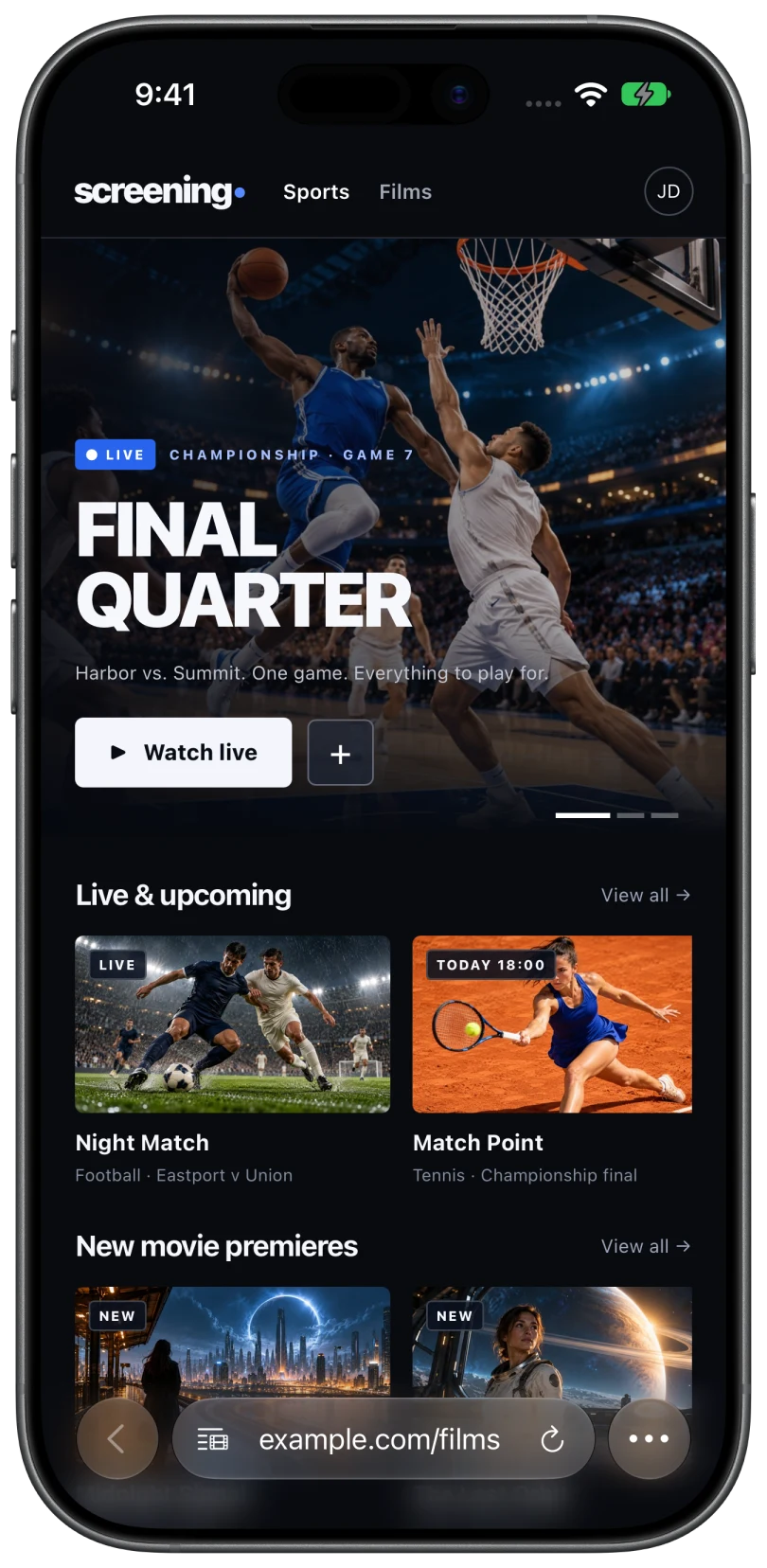
- Open the page in Cast Browser and press play on the video if needed.
- Tap the Video List button in the address bar and select the video.
- Choose your TV from the device list.
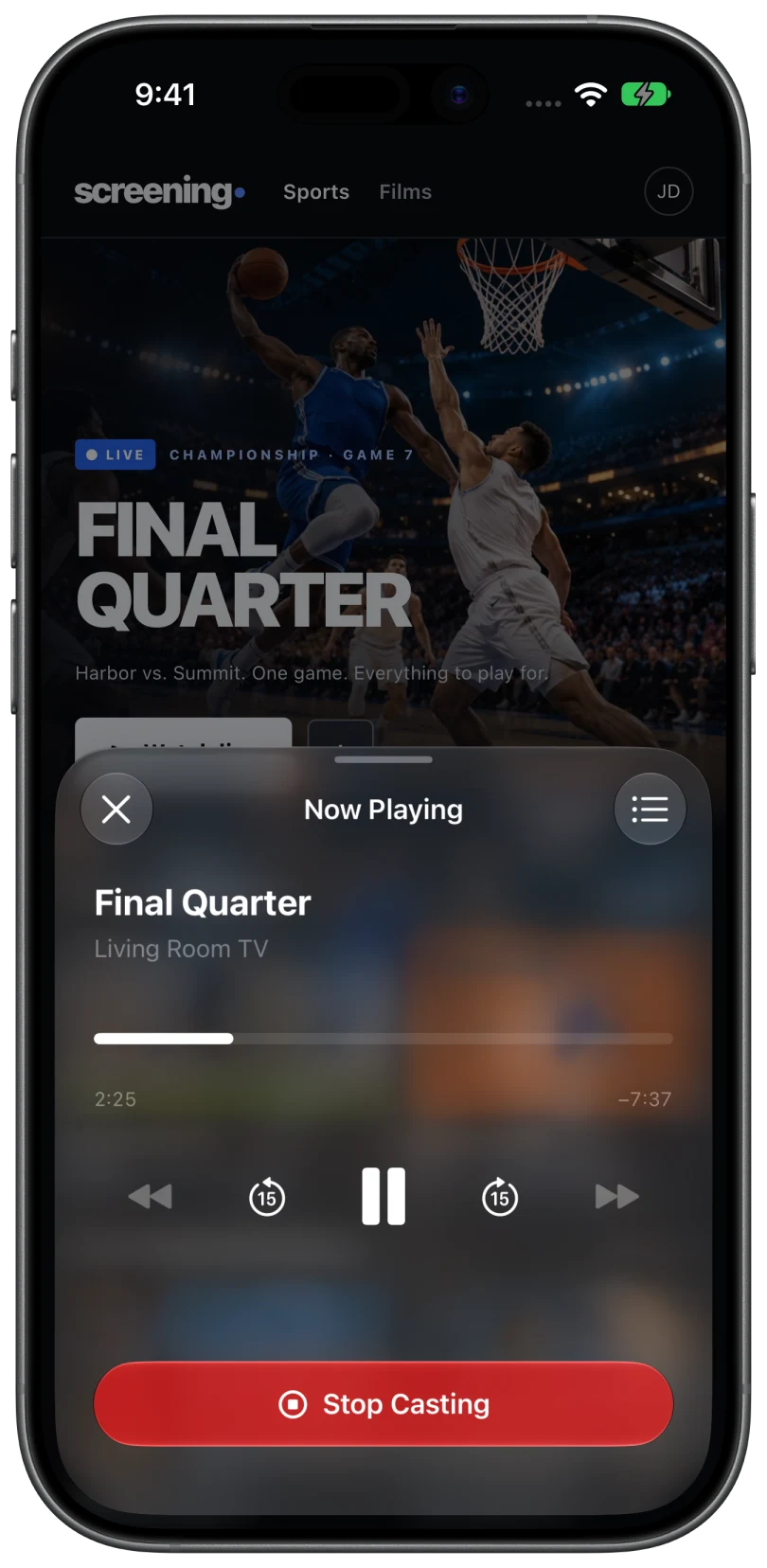
What this does not fix. Cast Browser does not use AirPlay, so it cannot send to an Apple TV or to a TV that only supports AirPlay. It also cannot cast DRM-protected video. If the black screen in step 2 was caused by DRM, a different app will not change that.
5. Screen mirroring as a last resort
Screen Mirroring in Control Center sends the whole iPhone display to an AirPlay TV. It works with players that hide the AirPlay icon, but the phone must stay on that screen, the picture is lower quality, and protected video still shows black. How mirroring differs from casting.
Common questions
Why does AirPlay work on some websites and not others?
Each website controls its own video player. Some leave AirPlay on, some switch it off, and some protect their video so it only plays in their own app.
Can an app turn AirPlay back on for a website?
No. What an app like Cast Browser can do is avoid AirPlay and send the video over Google Cast or DLNA instead, if your TV supports one of those.
Does Cast Browser work with Apple TV?
No. Apple TV is an AirPlay receiver, and Cast Browser casts to Google Cast and DLNA receivers only.
Related
- Screen mirroring vs casting: what is the difference?Mirroring copies your screen. Casting hands the TV the video. When to use each.
- Safari will not cast to Chromecast: why, and what to use insteadSafari only speaks AirPlay, and a Chromecast only speaks Google Cast. How to bridge the two.
- Cast web videos from an iPhone to a Samsung TV without an Apple TVNo Apple TV needed. Send the video over DLNA, or use the TV's built-in AirPlay.