
Side by side
| Screen mirroring | Casting | |
|---|---|---|
| What the TV shows | Your whole phone screen, including notifications | Only the video |
| Where the video comes from | The phone records its screen and sends that | The TV plays the original stream |
| Picture quality | Limited by the phone's screen and the Wi-Fi link | The stream's own quality |
| Phone while playing | Must stay on, unlocked, and on that screen | Free to browse, switch apps, or lock in most cases |
| Battery use | High | Low |
| Works with | Anything visible on screen | Video the casting app can identify |
How screen mirroring works
With mirroring, the phone captures its display many times a second, compresses the result, and sends it to the TV. The TV is a second monitor. Rotate the phone and the TV rotates. A text message arrives and everyone in the room sees the banner.
On an iPhone, mirroring is built in. Open Control Center, tap Screen Mirroring, and choose an AirPlay receiver such as an Apple TV or a TV with AirPlay. It is the right tool for photos, slides, games, or an app that has no casting support.
For video it is a compromise. The picture has been compressed twice, the frame rate can stutter, and the phone works hard the whole time.
How casting works
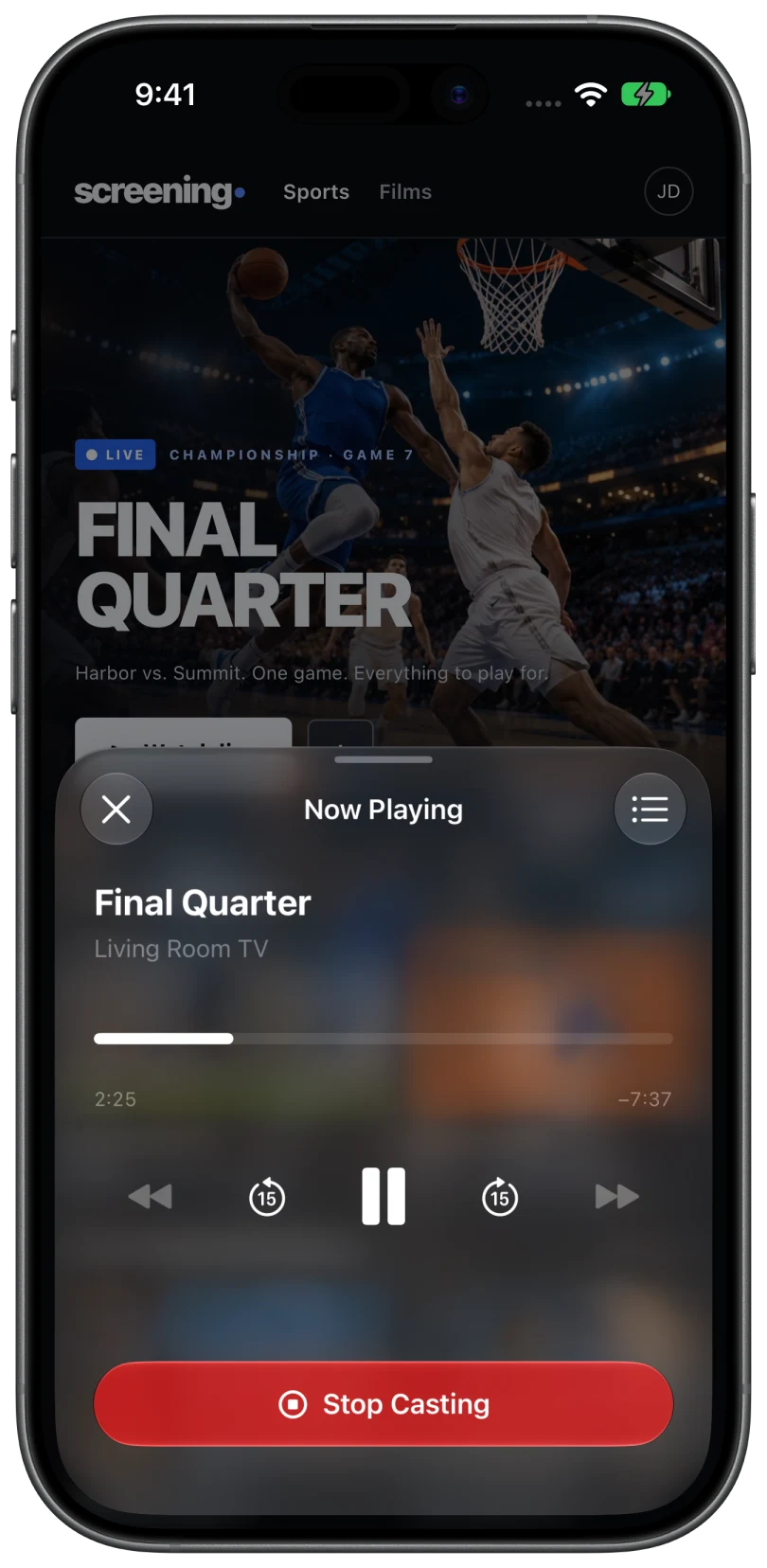
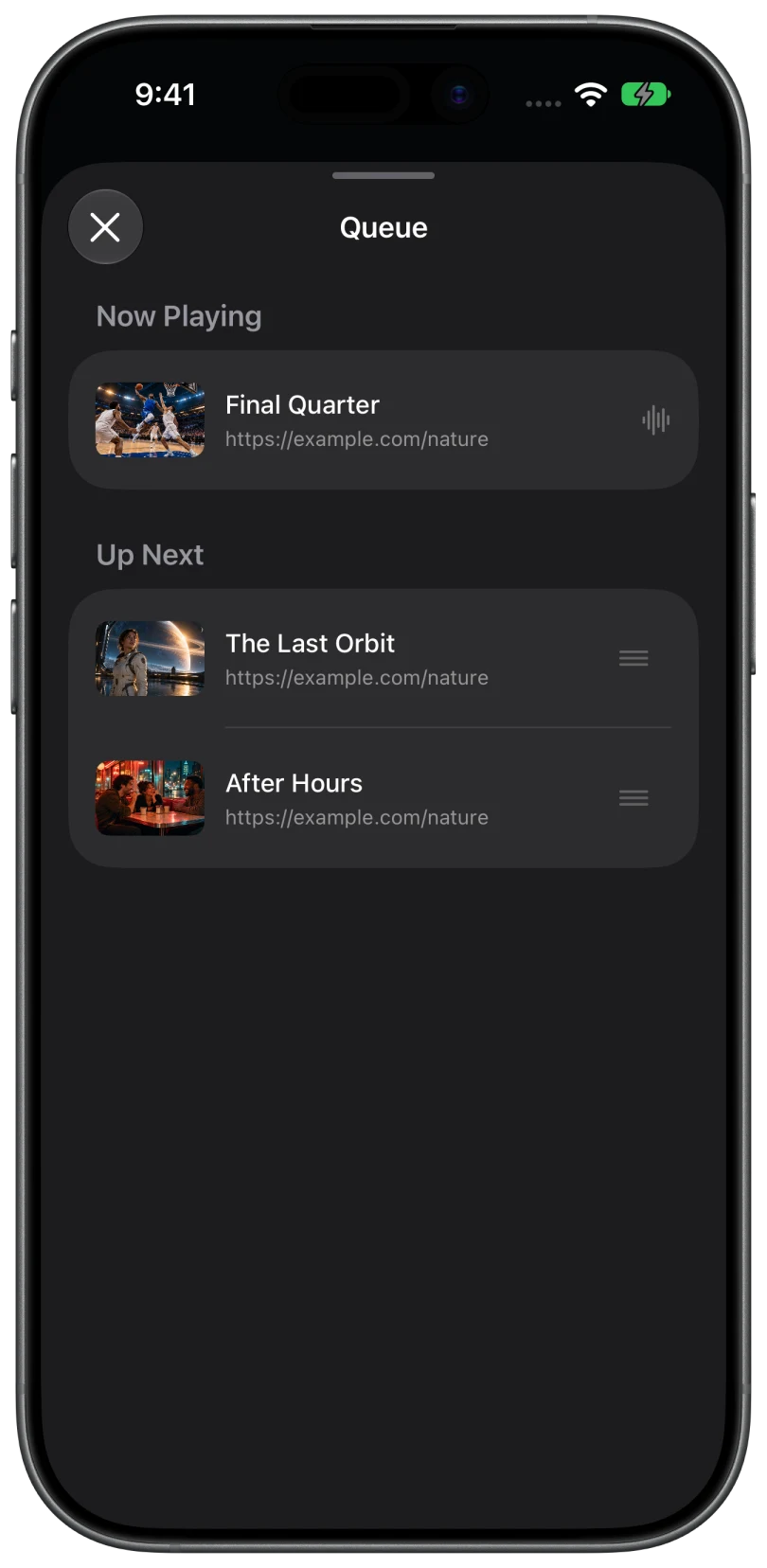
With casting, the phone tells the TV where the video is and the TV plays it. The phone sends instructions such as play, pause, and seek. The video does not have to pass through the phone's screen at all.
That is why a cast keeps playing when you lock the phone or open another app, and why it looks as good as the source. The three common casting standards are AirPlay video, Google Cast, and DLNA. The TV has to support the one your app uses.
Which one to use
- Watching a video from a website: cast it. You get the full quality and your phone back.
- Showing photos, a document, or an app: mirror. There is no video stream to cast.
- A video that will not cast: mirroring can be a fallback, though protected video usually appears as a black rectangle when mirrored.
Where Cast Browser fits
Cast Browser is a casting app, not a mirroring app. It is a web browser for iPhone and iPad that detects the videos on a page and casts them to Chromecast and Google TV devices over Google Cast, or to smart TVs over DLNA. It does not mirror the screen, and it does not send photos or files stored on the phone.
Guides for specific TVs: Chromecast, Samsung, LG, and Sony.
Common questions
Is AirPlay mirroring or casting?
Both. AirPlay can mirror the whole screen, and it can also cast a single video when you tap the AirPlay icon inside a video player. The second mode gives better quality.
Is Chromecast mirroring or casting?
Chromecast is built for casting. The receiver fetches and plays the video itself. An iPhone cannot mirror its screen to a Chromecast with the built-in Screen Mirroring feature, because that feature uses AirPlay.
Does casting use my phone's data?
The TV usually downloads the video over your home internet connection. The phone only sends small control messages over Wi-Fi.
Why does mirrored video sometimes show a black screen?
Protected video blocks screen capture. The rest of the screen mirrors normally and the video area stays black.
Related
- Cast web videos from an iPhone to a ChromecastOpen the page, pick the detected video, choose your Chromecast. Works with Google TV and Android TV too.
- AirPlay not working on a website videoThe site blocks it, the video is protected, or the TV is unreachable. How to tell which, and what to do.
- Cast web videos from an iPhone to a Samsung TV without an Apple TVNo Apple TV needed. Send the video over DLNA, or use the TV's built-in AirPlay.